Open WebUI + models and add-ons
Open WebUI first login · models and add-ons
TL;DR — a 30-second summarytldr
The storefront users actually see is Open WebUI — a web chat that looks like the famous cloud ones, except the back end is our own Mac. This chapter walks from first launch and creating the admin account to inviting users and the curated model picker menu
This chapter levels up the storefront: wire in knowledge-base RAG (embeddings + reranker), an in-house web search engine, and add-on tools (tools/pipelines) — everything is free and runs on our own machines
When to usewhen to use
Do this after the stack is fully up (chapters 3-4) — open https://chat.your-domain.com from any browser, including mobile
- Our system runs invite-only: no self sign-up, the admin must create every account (production currently has 19 users)
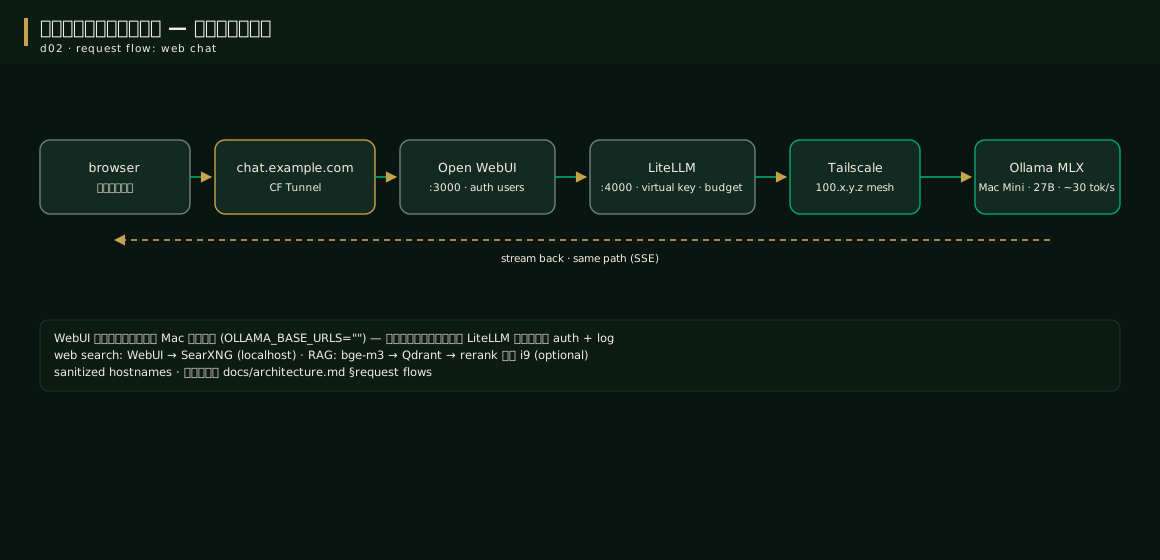
- Behind the scenes every call walks: WebUI → LiteLLM (master key) → Mac — users never need to know where the keys are
Do this once the web chat already works normally (chapter 5) and you want:
- An organizational knowledge base — upload PDFs, documents and manuals, then ask questions answered from the actual files
- Answers with sources — an in-house web search system plus citations in the reply
- Better RAG quality — a reranker picks the passages that are genuinely relevant before they reach the model
How-tohow to
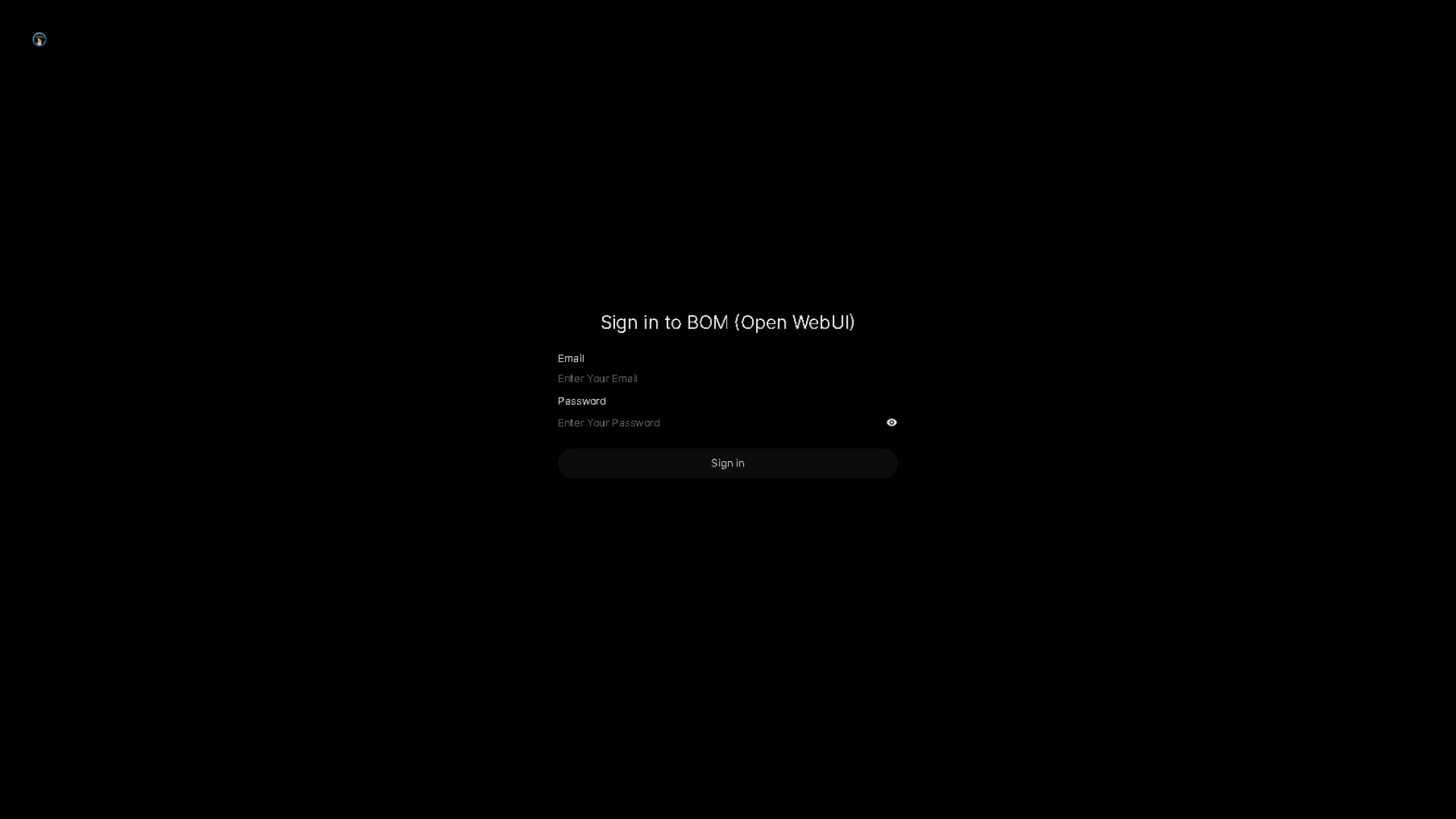
On first launch: whoever registers the first account automatically becomes the admin — use your own email+password and the system drops you straight into the chat page (real screenshot below)
- Configure sign-ups: Admin Panel → Settings → General → turn off "Enable New Sign Ups" (keep it only for when you invite friends)
- Create users: Admin Panel → Users → + fill in email/temporary password, then send it to your friend so they change it themselves
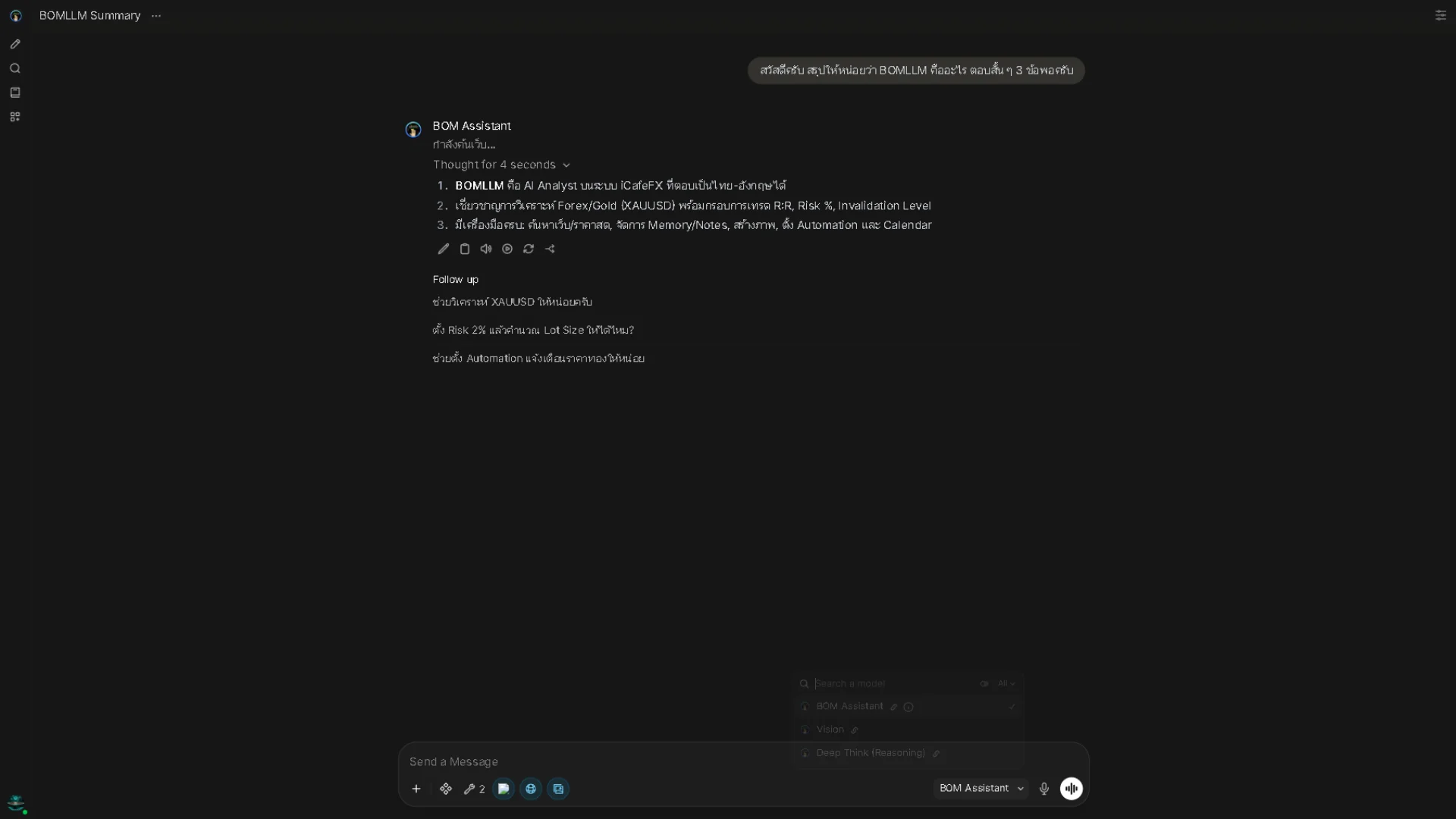
- Control which models users see: set this on the admin Models page — ours is curated down to Chat / Deep Think / Code / Vision (admin models are hidden from user view)
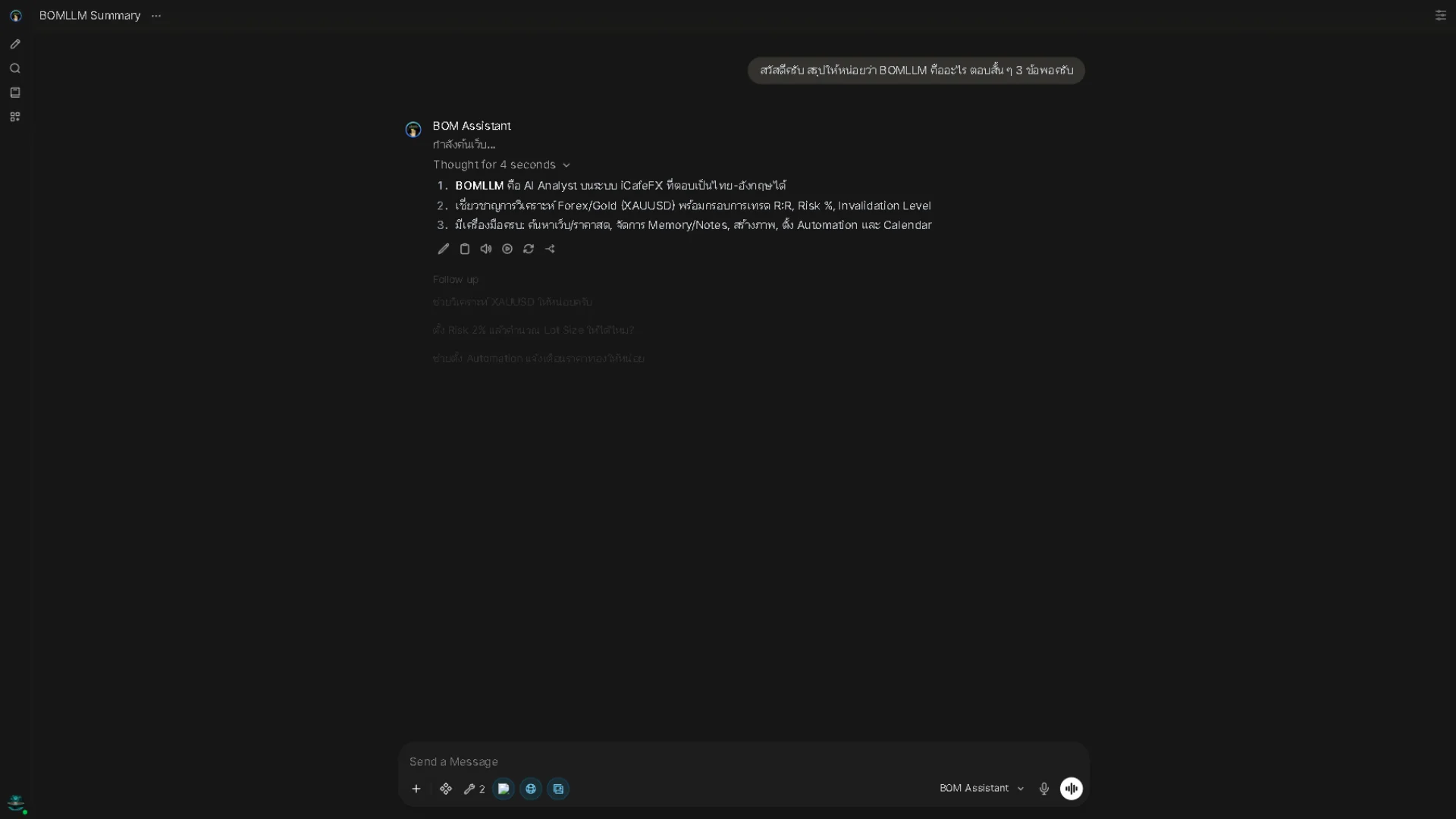
- Test: type a question such as "Summarize today's gold news in 3 points" — the answer must stream out character by character from the Mac
Features actually enabled on the storefront: web search (SearXNG), RAG (bge-m3+Qdrant+reranker), image generation (chapter 6), text-to-speech/speech-to-text (on the i9)
If anything gets stuck → chapter 9
Part 1 — Embeddings (the heart of RAG): the model that turns text into vectors, bge-m3, runs free on the Mac
# Check it is already on the Mac (if not: ollama pull bge-m3)
ollama pull bge-m3

# The WebUI calls it through the LiteLLM route named local-embed
# (already set in litellm.yaml: model=ollama/bge-m3, api_base=Mac)
WebUI-side settings: RAG_EMBEDDING_ENGINE=ollama + RAG_EMBEDDING_MODEL=bge-m3 (chapter 3)
Part 2 — The vector store: Qdrant holds all the vectors (already running from bootstrap, bound to localhost only) — upload documents on the WebUI Workspace page: drag files in → the system chunks them → makes embeddings → stores them in Qdrant
Part 3 — Reranker (raising precision): qwen3-reranker-4b runs on the i9 (:11435) and ranks "which document chunks really relate to the question" before they are sent to the model — one important rule: if the reranker dies the system fail-opens back to the un-re-ranked results (a timeout guards it) — it is not a whole-system crash
Part 4 — In-house web search: SearXNG (already running since chapter 3) — enable it per question from the "web search" button in the chat box; search results are attached as context, not as commands — the model is taught by system prompt to obey the system owner only
Part 5 — Tools/Pipelines: the storefront supports add-on plugins (e.g. image processing, external API calls) — install them via the Admin Panel → Functions/Pipelines menu; we use them lightly: mostly generating images through images.py to the chapter 6 router
If anything gets stuck → chapter 9
Config exampleconfig example
The key variables that shape storefront behavior (in the docker-compose.yml of chapter 3):
OPENAI_API_BASE_URLS: "http://litellm:4000/v1"  # forced through the LiteLLM gate
OLLAMA_BASE_URLS: ""                            # empty on purpose: no bypassing to the Mac
ENABLE_WEB_SEARCH: "true"                       # web search via the local SearXNG
WEB_SEARCH_ENGINE: "searxng"
RAG_EMBEDDING_ENGINE: ollama                    # embeddings run on the Mac (free)
RAG_EMBEDDING_MODEL: bge-m3
These values are why the storefront is fast, free and measurable — whenever you change something, come back and look at this block first
The whole RAG pipeline in one view:
User question (WebUI)
  -> search the Qdrant store with vectors from bge-m3 (done on the Mac, free)
  -> the reranker on the i9 ranks the most relevant document chunks
  -> merge in the SearXNG results if web search is enabled
  -> send "question + selected documents" to the main model on the Mac
  -> the answer cites [1] [2] as the user sees them
Every box stays in-house: VPS (Qdrant+SearXNG), Mac (embeddings+model), i9 (reranker)
Pro tip — field-tested trickspro tip
FAQfaq
Q: Does it work on mobile? — Yes. It is a responsive web app, has a camera mode for reading images, and can be installed to the home screen (PWA) just like an app
Q: Does user chat data leak out? — It stays in Postgres on our own VPS; nothing is sent outside the house unless that question must call the Tier 3 cloud (an explicitly named route, which can be disabled in chapter 4)
For other questions see the FAQ
Q: Can it read Thai-language uploads? — Yes; bge-m3 supports many languages including Thai, and the main model answers in Thai with citations pointing at the right chunks
Q: Web search sometimes returns odd answers? — there are cases where, with web search enabled, the model says hello instead of answering a live price question (being tracked in a repo issue); the workaround: ask directly without web search for real-time data, or enable it only for general questions
See alsosee also
- Chapter 6 · Images and voice — the image/voice buttons and the heavier add-ons
Figuresfigures

Real screen recording of this lesson · click play to hear the summary · not investment advice
▶ Watch the manual video: https://youtu.be/O4hM39cgDCY