Order Buttons (SEMI-AUTO)
⏱ ~3 min · 632 words · English
Want WARP to help open positions while you press close yourself? This chapter covers every button that lets you place orders by hand.

Chapter summary video · panel footage + voice (Demo · 2:30)
Footage from a demo account · press play to hear the summary · not investment advice
TL;DR
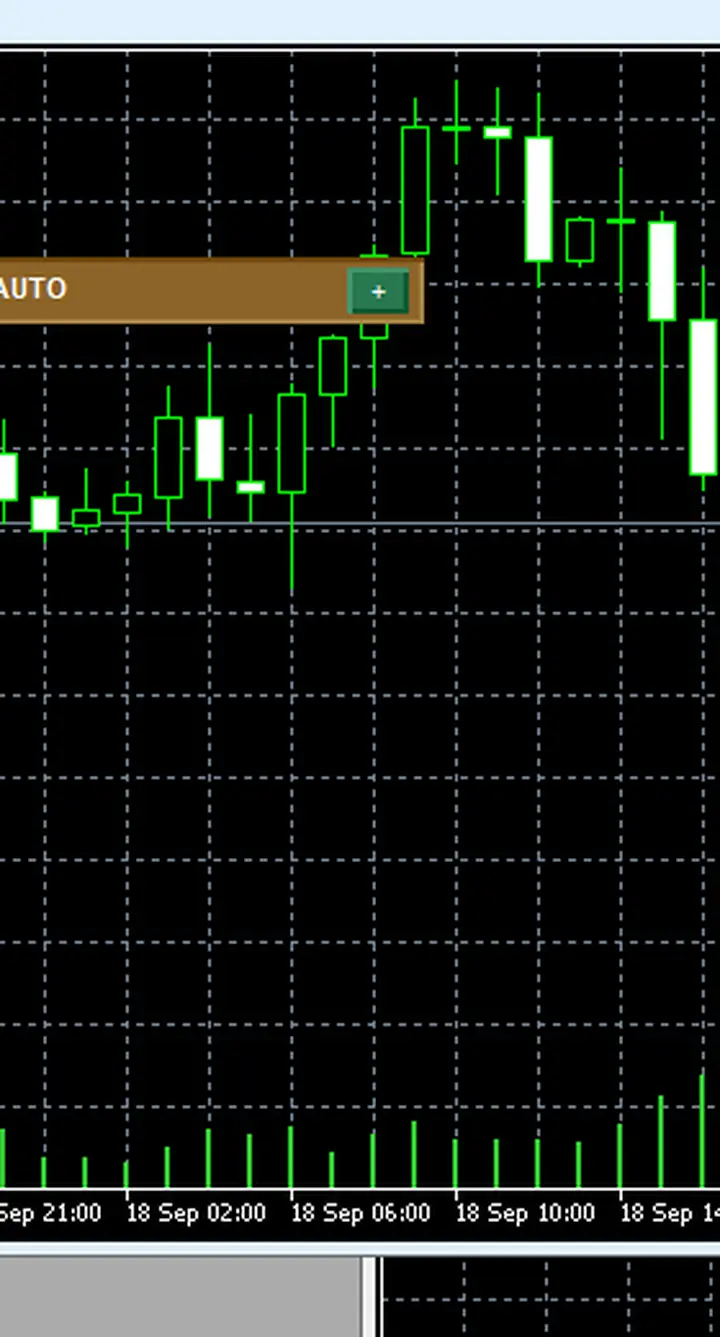
- The SEMI-AUTO bar sits at the top right of the chart; press X at the end of the bar to expand it
- Buttons you get: BUY · SELL · Pending · Close · Close All
- You can trade by hand whether AUTO is green or red — both systems share the same step number (Magic 244024) and count together toward the 3-position quota
- Values on the bar: TP BUY/SELL 20 · TSL 10 · SuperPIG 0$ · Profit Lock 10 pips
How manual orders work
SEMI-AUTO is your hand on the WARP chart: press BUY to open a buy with the lot size from the Lot field (0.01) · press SELL to open a sell · the Close button closes the opposite-side positions · Close All closes every WARP position at once
Where people slip: the virtual exits (Virtual TP/TSL) set on this bar stop working if MT5 is closed — same rule as chapter 7
Can it be used with AUTO?
Yes — manual positions placed through this bar use the same Magic as AUTO positions (244024), and the system counts them together inside the 3-position Max Orders limit · so with 2 manual positions open, AUTO has only 1 slot left — plan your position count before pressing
My sequence: expand the bar → check the Lot field is 0.01 → press BUY/SELL → watch Pos on the left panel change from 0/3 to 1/3 → set TP/TSL as you like, or leave the 20/20/10 defaults
Pro Tip · Mr. Bom
This bar is like a backup steering wheel. I use it when I want to enter on an event the system will not wait for, such as major news I can see before the chart does. But remember the position quota is shared — do not fill every slot by hand and leave AUTO with nowhere to stand. Try it on a demo account first; the risk is real even when you press the buttons yourself.
FAQ
⚠️ For educational purposes, not investment advice · always try on a demo account first · screenshots from a demo account
Related chapters
Get Redhat WARP free via LINE @icafefx
Add LINE to receive the EA + manual + usage guidance · works on any MT5 broker that offers gold · always start on a demo account