Meet the Panel (screen tour)
⏱ ~4 min · 868 words · English
A guided walk past every button — what it does and where it sits. Finish this chapter and the panel will never confuse you again.

Chapter summary video · panel footage + voice (Demo · 3:24)
Screens from a demo account · press play to hear the summary · not investment advice
Quick summary
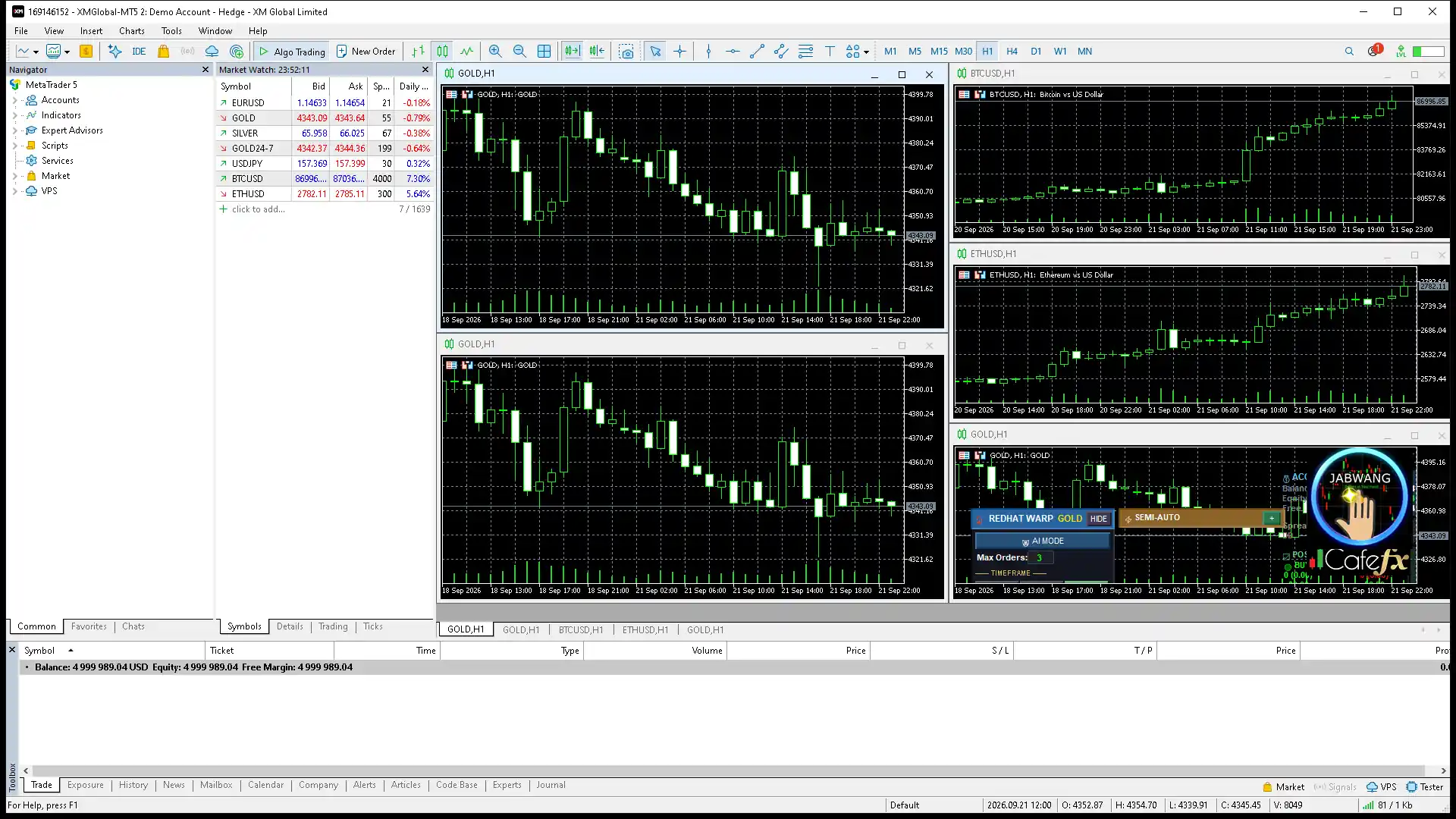
- The real screen has 2 big panels: the tool panel on the left + the Redhat V11.29 info panel on the right
- The SEMI-AUTO bar sits top-right on the chart; press X to expand the manual order buttons
- AI MODE is a slot reserved for the future; there is no function to pick yet
- Meet every zone here in one place — the other chapters reference this map
The whole screen
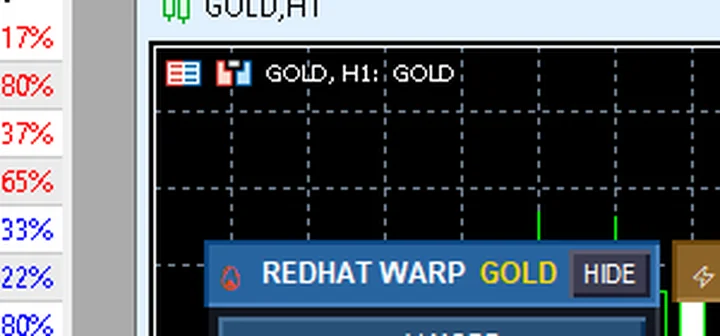
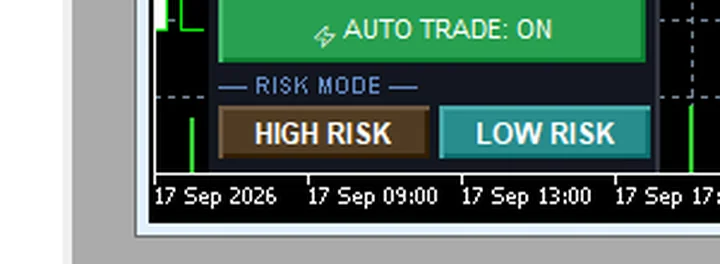
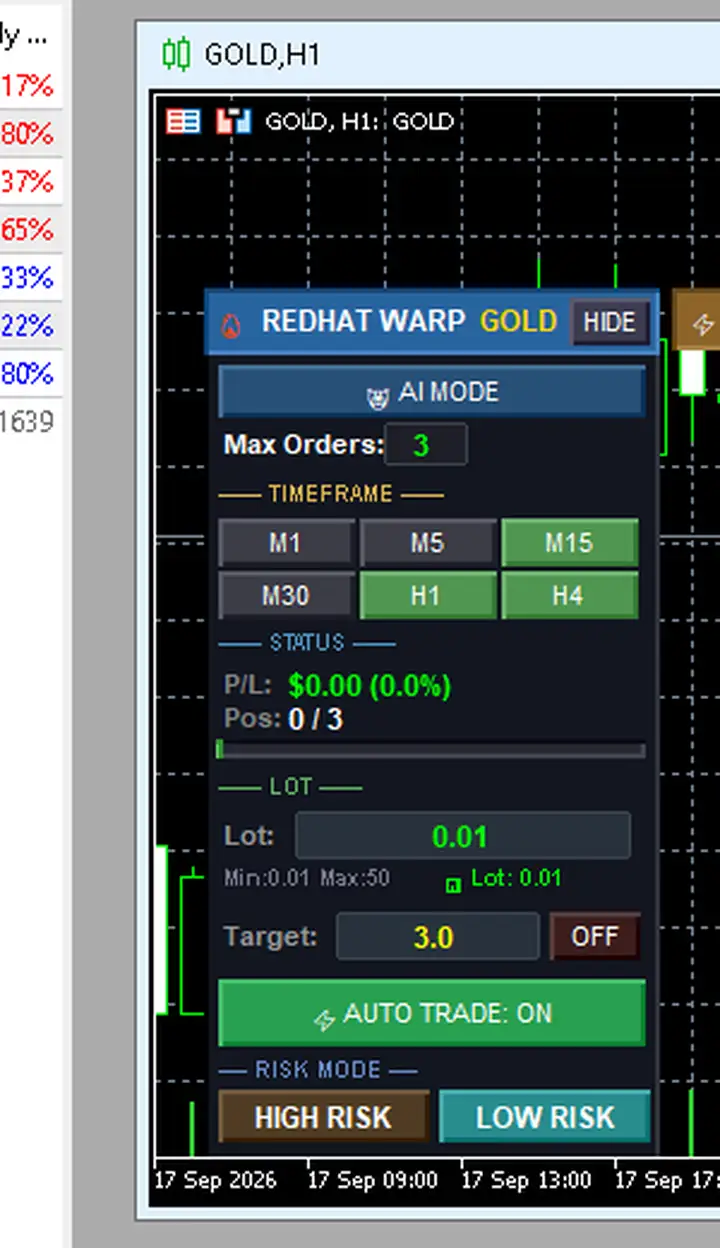
Open a GOLD H1 chart on a demo account and you will see 3 parts: the chart in the middle · the WARP tool panel on the left · the Redhat V11.29 info panel on the right. WARP has two real switches: the AUTO button on the toolbar (green = hunting for a setup · red = stopped) and the HIGH RISK / LOW RISK buttons on the panel (LOW is the default) — there is no separate AI mode to pick; the AI MODE button is a slot reserved for the future
The right panel is a mirror of the account: ACCOUNT INFO (balance · spread · drawdown) · POSITIONS (open Buy/Sell) · MTF TREND (trend across 7 timeframes, M1 to D1) · LIVE SIGNALS (Trend · Market · Elliott · TV Signal) — it is read-only information, with no chat box and no trading buttons
A tour zone by zone
Zone 1 — AI MODE: a blue button at the head of the left panel; below it reads Mode: Smart AI – Auto select timeframe (H1) · pressing it changes nothing on screen, because it is a slot reserved for the future
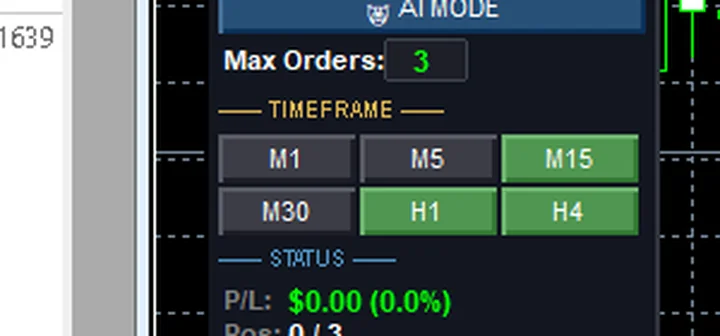
Zone 2 — TIMEFRAME: a grid of M1–H4 buttons; the factory TF bar lights up M15 / H1 / H4 · a green button = the system is using that timeframe (details in chapter 3)
Zone 3 — position spacing: Add (pts): 50 means the next position is added 50 points (5 pips) away · Max Orders: 3 caps it at 3 positions
Zone 4 — risk: HIGH RISK in orange · LOW RISK in teal-green (the default) · there is no AUTO button here (chapter 5)
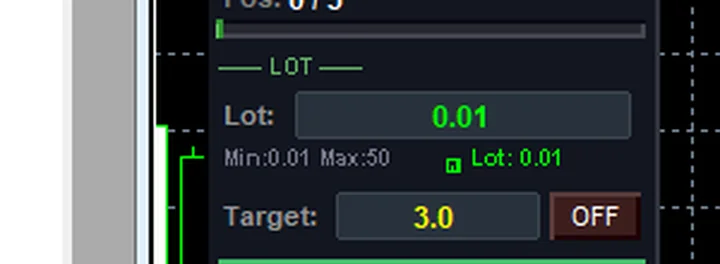
Zone 5–6 — status and panel footer: the status row Pos: 0/3 plus the order summary information
Zone 7 — the SEMI-AUTO bar: a small bar top-right on the chart; press X at the end of the bar to expand the Buy/Sell/Close buttons (chapter 6)
Pro Tip · Mr. Bom
I could not memorize the panel either when I started with my first EA. My method: leave the demo open for a day, then come back and read zone by zone — which numbers move, and which stay still. Familiarity comes from watching, not memorizing. Always try on a demo account first; the risk stays real even after reading the whole manual.
FAQ
⚠️ For education only, not investment advice · always try a demo account first · screenshots from a demo account
Related chapters
Get Redhat WARP free via LINE @icafefx
Add LINE to receive the EA + the manual + usage guidance · works with any MT5 broker that offers gold · always start on a demo account