The real trading modes of WARP: AUTO + HIGH/LOW, plus Sniper TFs
⏱ ~7 min · 1370 words · English
WARP offers several modes. This chapter tells you which fits your style, where to press to switch - and how Sniper timing follows the timeframes the system picks.

Chapter summary video · panel footage + voice (Demo · 3:49 + 3:29)
Screens from a demo account · press play to hear the summary · not investment advice


Quick summary
- There are 2 real switches: the AUTO button on the toolbar and HIGH/LOW RISK on the panel
- Green AUTO = hunting for a setup · red AUTO = stopped
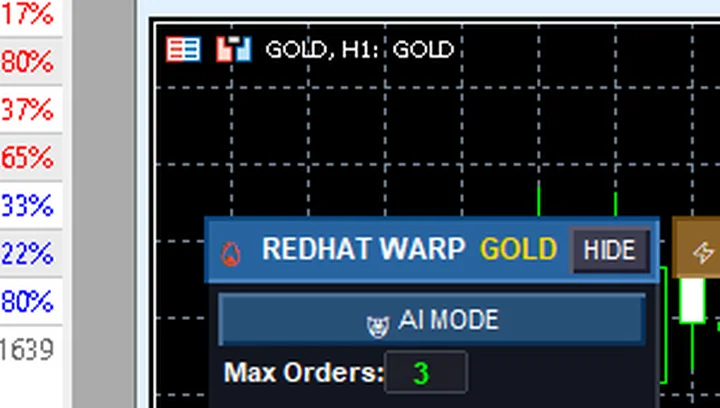
- AI MODE is a slot reserved for the future, not a mode to pick
- The factory TF bar lights up M15 / H1 / H4
- Sniper = scalping timing on the timeframes the system picks itself
- The factory TF bar lights M15 / H1 / H4
- The TF buttons on the panel are displays — pressing them yourself changes nothing
- A larger TF = fewer signals and lower risk — good for beginners
What the real modes are
WARP has two real switches: the AUTO button on the toolbar (green = hunting for a setup · red = stopped) and the HIGH RISK / LOW RISK buttons on the panel (LOW is the default) — there is no separate AI mode to pick; the AI MODE button is a slot reserved for the future
The AUTO button sits on the MT5 toolbar (pressing Ctrl+E works too) · the smiley-face icon on the chart turns green along with it when AUTO is running · the risk buttons sit on the left panel: LOW RISK in teal-green is the default, HIGH RISK in orange
The TF bar (M1–H4) is not a mode switch — it is an indicator of which timeframe the system is working on. The factory TF bar lights up M15 / H1 / H4 — taught in detail in chapter 3
How to switch
Switching AUTO: tested on Demo — press the AutoTrading button on the toolbar · the button turns green · the smiley-face icon goes green · press it again to switch off · the button turns red · the face goes gray
Switching risk: press HIGH RISK on the left panel · the orange button lights up · LOW dims · press LOW RISK to go back · the teal-green button lights up — changing the risk does not change the Lot field (the lot is controlled in the Lot field · chapter 5)
What Sniper is
WARP chooses the timeframes (Timeframe · TF) it scans for entries on its own. The factory TF bar lights M15 / H1 / H4 — as market conditions change, the system adjusts according to its own volatility criteria.
I tested on a demo account: pressing M5 and M30 on the TF bar — the state did not change · pressing a lit button did not switch it off — confirming that the buttons are system-driven displays, not switches for us to toggle.
How to read the TF values
Read the colors: green = the system is using that TF · gray = not in use · the factory TF bar lighting M15 / H1 / H4 is the fresh-install factory state.
Read it alongside the right-hand panel: LIVE SIGNALS reports the current Trend and Market · MTF TREND summarizes the trend across 7 timeframes — use them when deciding whether to let AUTO keep working or take a break.
System trade numbers: R:R about 3.0 (scalping) down to 2.5 (trend-following) · added positions spaced 50 points (5 pips) apart · no more than 3 positions.
Pro Tip · Mr. Bom
I always start with AUTO left red, watch the signals for a while, and only turn it green once I understand what I am seeing. Keep LOW RISK on for the whole early period, and do not start wondering why profit comes slowly — the slowness is the price of your protection. Try it on a demo account first; the risk is real in every mode.
Beginners often want to press the TF buttons to force their own preference. My advice: let the system manage this itself, and control risk through the HIGH/LOW button and the Lot field instead. Leave TF selection to WARP, and test on a demo account first — the risk is real even when the system has picked larger TFs.
FAQ
⚠️ For education only, not investment advice · always try a demo account first · screenshots from a demo account
Related chapters
Get Redhat WARP free via LINE @icafefx
Add LINE to receive the EA + the manual + usage guidance · works with any MT5 broker that offers gold · always start on a demo account