Troubleshooting · Contact and Community
Sword v4.67 troubleshooting · auth problems · silent buttons · missing buttons · field names that differ from old manuals, fixed step by step · reach the team on LINE @icafefx · the manual and tools are free
Illustrations
Chapter video
Real MT5 screen recording · not investment advice · trading involves real risk
TL;DR
Most Sword problems end in four items · first, licensing: until it passes, the special buttons never appear · second, buttons that stay silent when pressed — usually the Algo Trading button on the toolbar is still off · third, missing buttons — most are hidden on purpose · fourth, field names that do not match old manuals, because the real names in the code are different
Everything in this manual is free · the main channel is LINE @icafefx — use it to ask about problems, request new versions, and follow announcements · the iCafeFX app on both stores downloads free · if you hit an emergency involving trades or money, check the troubleshooting section above first, then reach out
When to use this feature
Open this chapter when the panel is not behaving as expected · open it when you see buttons missing or new ones appearing · open it when an old manual leaves you confused about field names
Use it when installation fails, the license check does not pass, or you have usage questions · use it when you want to follow new version news
How to use
Start with licensing · when you first attach the EA, the system checks your license against a server one time · if it passes, the right column switches to the full button set with Buy-ALL and Show Fibo · if it does not pass, check your internet first, then try closing and reopening the EA · if it still does not pass, contact the team on LINE · while you wait, the panel keeps working with the basic set
Next, buttons that stay silent · first look for the Algo Trading button on the toolbar above — when that button is dim gray, the EA cannot send any trade orders at all, opening or closing · the next thing is the system's helper files: during installation you must tick the box allowing the EA to use DLL files, otherwise the licensing system cannot work
Missing buttons come in three common kinds · first, the Hedge row is gone because ShowHedgeButton defaults to off — go turn it on in the Inputs tab · second, the M and S buttons disappear after passing auth: that is normal v4.67 behavior, the button sets rotate · third, you cannot find the AutoBuy and AutoSell buttons anywhere — let me repeat: this pair does not exist in this version; the code has been compiled out
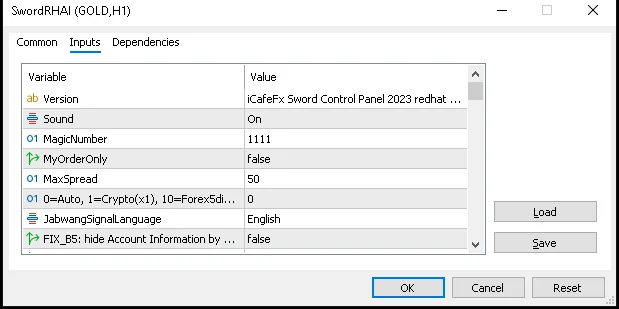
On field names: if you open the Inputs tab and cannot find a field you once read about elsewhere, open chapter 12, which lists every real field name · just matching the names usually gives you the answer
Our main channel is LINE, ID @icafefx — you can tap the button at the bottom of this chapter · when you message in, please share three things: the version you use, the problem you hit, and a screenshot from that moment — the team answers much faster
Everything free in this book · this nine-chapter manual reads free · the iCafeFX app on both stores downloads free · the manual updates when a new version ships, always announced on LINE first
Before we part, I have gathered the top questions from the whole book here at the end — scan them before messaging the team; the answer may already be there · and the last thing I always say: try everything in this manual on Demo first — trading always involves real risk
Pro Tip · Mr. Bom
Before contacting the team, jot down three things: the screen at that moment, the message shown, and the name of the button you pressed · these three make the fix much faster · and if it concerns trades or money, decide only on what you know for certain — trading involves real risk
Save the chapter numbers you use most in your phone notes · when the market moves fast, finding the right chapter within ten seconds beats guessing on your own · and whatever problem you hit, always send a screenshot — one image helps a lot
FAQ
Q: The EA says the license check failed. What do I do?
A: Check your internet, then close and reopen the EA; if it still fails, send it to the team on LINE
Q: I press the open-trade button and nothing happens.
A: Look at the Algo Trading button at the top first — if it is off, turn it on, then press again
Q: Where did the Hedge button row go?
A: It is hidden from install onward — turn on ShowHedgeButton in the Inputs tab
Q: Why do the field names in the old manual look different?
A: The old edition used made-up names; this one uses the real names from the code — compare them in chapter 12
Q: Do I have to tick anything extra during installation?
A: Yes — you must allow the EA to use DLL files during installation, otherwise the licensing system will not work
Q: Does this manual charge money?
A: No — the whole book reads free
Q: What is the latest version?
A: This manual is written for v4.67 — new versions are always announced on LINE first
Q: What do I do about an urgent trade problem?
A: Read the troubleshooting section above in order first; if it does not improve, message LINE with a screenshot
Q: Can Sword really make me rich?
A: No tool guarantees results — risk is always real; practice and manage risk first
Q: Do version updates cost anything?
A: No — update through the announced channels
See also
Follow Mr. Bom on LINE
Ask further questions on LINE @icafefx · new version updates · signals and manuals, all free
Download Redhat Sword free
Semi-Auto Trading Panel · MT5 · XAUUSD · always try on Demo before any live account · trading involves real risk