Installing WARP V11.29 on MT5, step by step
⏱ ~3 min · 620 words · English
Follow the steps one by one and you will see WARP running on your own gold chart within minutes.

Chapter summary video · panel footage + voice (Demo · 4:35)
Screens from a demo account · press play to hear the summary · not investment advice
Quick summary
- Install order: get the file on LINE → Experts folder → open in Navigator → drag onto the GOLD H1 chart
- It installs fine without DLL Imports enabled (tested; the panel works normally)
- You must tick Allow Algo Trading under Options → Expert Advisors
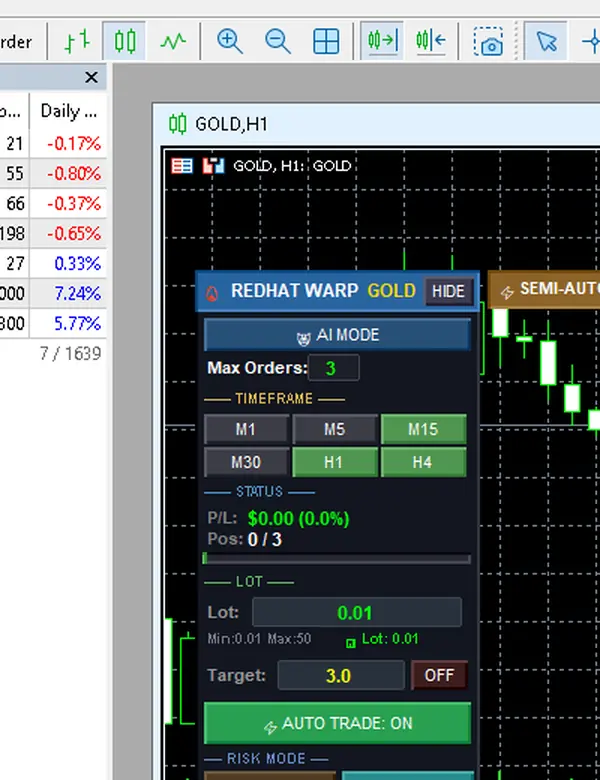
- How you know it is done: the left panel appears in full + the AUTO button stays red (not started yet)
Before you install
What you need: MT5 from a broker that offers gold · the Redhat_WARP_V11_29.ex5 file (received via LINE @icafefx) · a demo account ready to use — always start with Demo
A common question: do I need to enable DLLs — no · I tested on V11.29: with Allow DLL imports left off, I dragged the EA onto the chart, and the panel came up complete and worked normally
Installation in 6 steps
1) Open File → Open Data Folder → MQL5 → Experts · 2) Drop the redhatWARP_real folder in · 3) Restart MT5 or press Refresh in the Navigator · 4) Open Tools → Options → Expert Advisors → tick Allow algorithmic trading · 5) Drag Redhat_WARP_V11_29 onto the GOLD chart on H1 · 6) Press OK — the left panel appearing in full means the install succeeded
Success checklist: a smiley-face icon appears next to the EA name on the chart · the AUTO button on the toolbar is red (not working yet) · the right panel is titled Redhat V11.29 — all three present means you are ready; continue to chapter 3
Pro Tip · Mr. Bom
Half the emails I receive come from files dropped in the wrong place — putting it in Indicators instead of Experts is the most common first mistake. Check again before restarting: the path must always end at MQL5/Experts, and only then drag it onto the chart. Try it on a demo account first — the risk is real from the very first position you start.
FAQ
⚠️ For education only, not investment advice · always try a demo account first · screenshots from a demo account
Related chapters
Get Redhat WARP free via LINE @icafefx
Add LINE to receive the EA + the manual + usage guidance · works with any MT5 broker that offers gold · always start on a demo account