Installation and Setup
Install Sword v4.67 on MT5 · one file is all it takes because the indicators are embedded · tick Allow DLL · automatic first-time license check
Illustrations
Chapter video
Real MT5 screen recording · not investment advice · trading involves real risk
TL;DR
Installing Sword is shorter than you think, because all six indicators are already embedded in the EA file — no extra files to copy · the steps are: place the file in the Experts folder, restart the program, then drag it onto a gold chart · while attaching there is a box to tick allowing DLL files; you must tick it, otherwise the license system will not work · once attached, the system runs the first license check automatically
When to use this feature
Do this once when you start using the panel · and reread it when you move to a new machine or reinstall the program
How to use
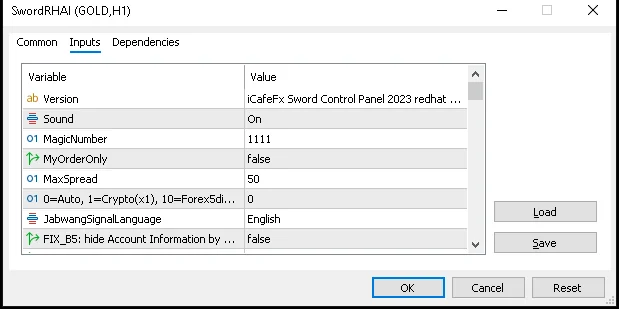
Follow along one step at a time · step one, place the Sword file in the Experts folder of your MT5 program · step two, close the program and open it again; you will see the Sword name in the Navigator window · step three, open a gold chart on the hourly timeframe, then double-click the Sword name in the Navigator
When the settings dialog pops up, find the row about allowing DLL files and tick it on · this box matters a lot, because the Sword license system runs through this kind of helper file · without the tick the panel comes up incomplete and cannot verify the license · then press OK
The last step is to wait · the EA contacts the server to check the license by itself; it takes only a few seconds · once it passes, the panel switches to the full set · a machine that has passed the check is remembered for about one hour; within that window you can close and reopen without checking again
Pro Tip · Mr. Bom
Create one separate MT5 profile just for Sword · opening the program to a familiar layout removes a lot of stress · and always keep a note of which machines are installed and which day the license check passed
FAQ
Q: Do I need to copy extra indicator files?
A: No; all six indicators are already embedded in the EA file
Q: I forgot to tick Allow DLL — what now?
A: Right-click the chart, open the EA properties dialog, and tick it then
Q: Does the license check take long?
A: Normally a few seconds, and once passed the system remembers it for about an hour
Q: Can I attach it to other pairs?
A: Yes you can, but this manual focuses on gold; the values follow the gold scale
Q: If I move to another machine, do I have to set it up again?
A: You must reinstall and run the license check again; it does not take long
See also
Follow Mr. Bom on LINE
Ask further questions on LINE @icafefx · new version updates · signals and manuals, all free
Download Redhat Sword free
Semi-Auto Trading Panel · MT5 · XAUUSD · always try on Demo before any live account · trading involves real risk