Sword Panel Map - Zones and Buttons by Real Code
Walk the Sword v4.67 panel zone by zone as written in the real code · left column holds the open-close trade buttons · right column holds the tool buttons · once you know this map you can find any button instantly
Illustrations
Chapter video
Real MT5 screen recording · not investment advice · trading involves real risk
TL;DR
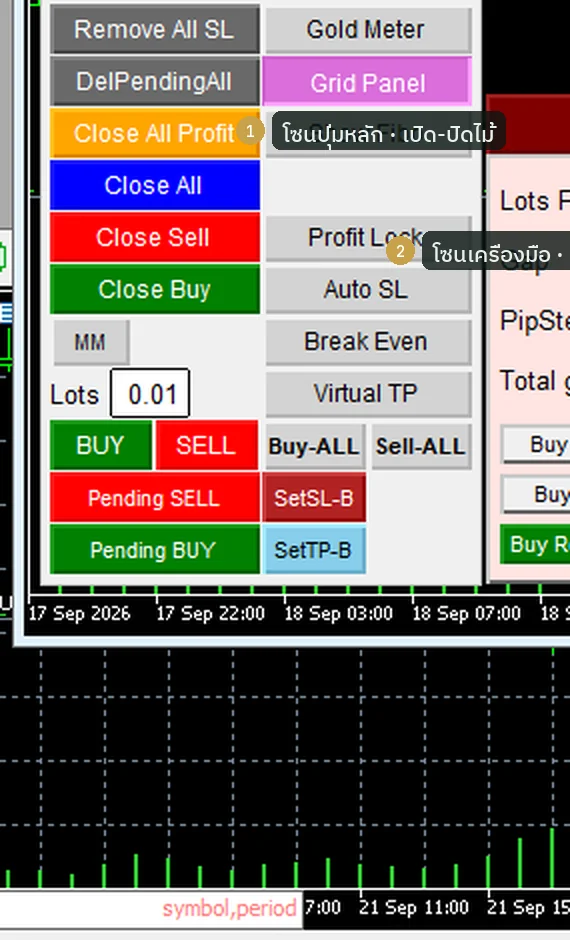
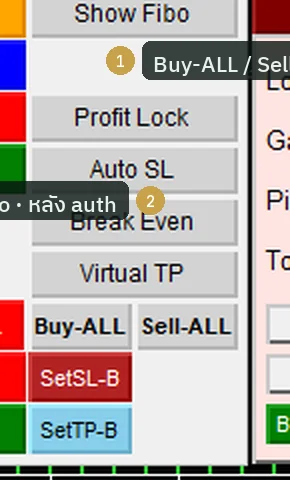
The Sword panel sits in the bottom-left corner of the chart, light gray with Arial button labels · the left column holds the open-trade and close-trade buttons plus the Lots box, while the right column holds tools that help manage positions · before passing auth you see the M and S buttons in the right column; after auth that pair is replaced by Buy-ALL · Sell-ALL · Virtual TP · Show Fibo · for your first week four buttons are enough: BUY, SELL, Close all, Auto SL
When to use this feature
Use it when you have just opened the panel for the first time and the buttons still feel like a maze · use it as the map while reading the other chapters, because every chapter refers to button names from this page · use it when comparing the pre-auth face with the post-auth face to see which buttons appear
How to use
Let me walk you through it zone by zone, like taking a child on a tour of a new classroom · start at the top of the left column: the Pending BUY and Pending SELL buttons, used to place trades that wait for a price · below them is the green-red pair BUY and SELL, which open trades instantly at market price · under that pair sits the close-trade group Close Buy · Close Sell · Close All · Close All Profit · DelPendingAll · Remove All SL, stacked from top to bottom · the row with the 0.01 number box and the pale yellow MM button is where you set the lot size
The right column changes with auth status · on the normal pre-auth face you see Break Even · Auto SL · Profit Lock · the M button · the S button · Grid Panel · Gold Meter · once auth passes, M and S disappear and Buy-ALL · Sell-ALL · Virtual TP · Show Fibo take their place · at the very bottom of the panel there is the SuperPIG dollar box and the Hide button for folding the panel away
| Zone | Buttons (names as in code) | What it does, in short |
|---|---|---|
| Entry left | Pending BUY · Pending SELL · BUY · SELL | Place waiting orders / open instantly |
| Entry right (after auth) | Buy-ALL · Sell-ALL | Open a run of consecutive trades |
| Close left | Close Buy · Close Sell · Close All · Close All Profit · DelPendingAll · Remove All SL | Close per side · close all · profit-only · delete pending · strip SL |
| Risk left | MM (with the Lots box) | Switch the lot field into a money divisor |
| Risk right (before auth) | M · S | Manual / Semi mode |
| SL/TP | SetSL-B · SetTP-B · SetSL-S · SetTP-S | Set SL and TP for both sides |
| Tools right | Break Even · Auto SL · Profit Lock · Virtual TP (after auth) · Show Fibo (after auth) | Automatic position management |
| Hedge (must be enabled in Inputs) | Hedge · Hedge x2 · Hedge x3 · Hedge AutoCut | Block the opposite side |
| Display | Grid Panel · Gold Meter · Hide | Toggle on-screen elements |
I checked every button name in this table against the real source-code file · if any button is missing on your screen, read chapter 9 on troubleshooting
Pro Tip · Mr. Bom
In your first week, do not chase every button yet · get fluent with just BUY · SELL · Close all · Auto SL first, then learn the other buttons one at a time · and try everything on Demo first, because the risk is always real
FAQ
Q: Why can't I find the Buy-ALL button?
A: This button appears only after passing auth; before that the right column shows M and S instead
Q: Where did the M and S buttons go after auth?
A: The v4.67 code is designed with two different faces; after auth the M and S buttons are replaced by the post-auth set — chapter 4 has the details
Q: How many buttons does the panel actually have?
A: Counting button names in the v4.67 code gives 41 compiled names, but fewer are visible on screen at once because some buttons take turns
Q: What is the ribbon on the right side of the chart?
A: That is the RHAI2 panel, a separate product that ships with the installer — not a Sword button
Q: Which button is safest for a beginner?
A: A close-trade button such as Close All; pressing it closes only the trades on this chart — but try it on Demo first
See also
Follow Mr. Bom on LINE
Ask further questions on LINE @icafefx · new version updates · signals and manuals, all free
Download Redhat Sword free
Semi-Auto Trading Panel · MT5 · XAUUSD · always try on Demo before any live account · trading involves real risk