Close an Order and Verify
Close orders on the side you selected and verify the list.
Before you start: You already checked each button's scope in the preparation chapter, and a sample order exists in the demo account.
Close All can have a wide effect depending on your settings, while Remove All SL only removes stop levels — it does not close orders.
Step by step
Review the order list before closing
Open the Trade tab and read the open orders. Note the symbol and the buy/sell side of the row you want to manage before touching any close button.
Verify the side you want to close
In the same list, find the buy-side order you want to close. Check both the symbol and the scope configured in Inputs. If several orders exist, check every order the button may affect.
Press Close Buy in the demo example
Find the Close Buy button on the Sword panel, re-check the scope from your preparation, then press it when ready to close the buy side of the demo account. Depending on settings this button may affect several orders.
Check the Trade list after closing
Go back to the Trade tab and check whether the row you intended to close is gone. If it is still there, read the message log and the status first — do not tap the same button rapidly.
Read and verify History
Open the History tab and find the just-closed row. Compare symbol, time and size with the original order. If you cannot find it, check the displayed date range first.
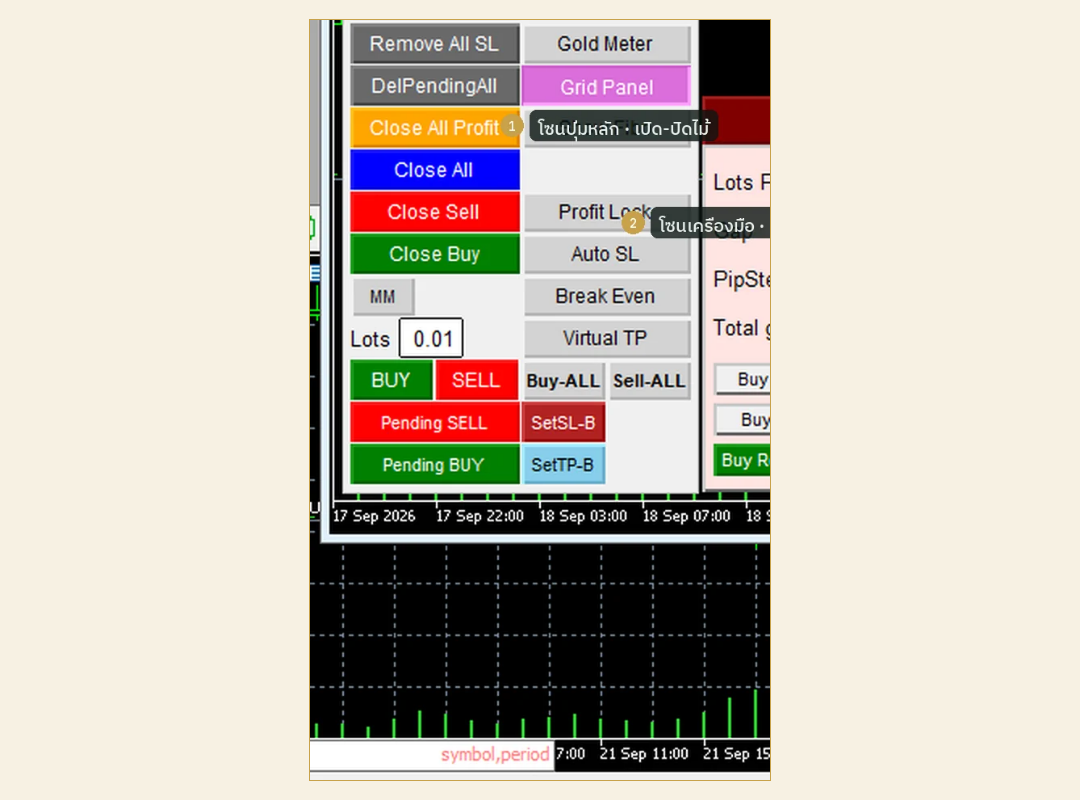
The intended row disappears from Trade and matches the new History entry.
Close one side at a time and verify the list between presses.
Watch the companion clip
The companion clip is from an earlier version; some frames may not match the current steps. Compare version names and follow the lesson together with the reference image on this page.